
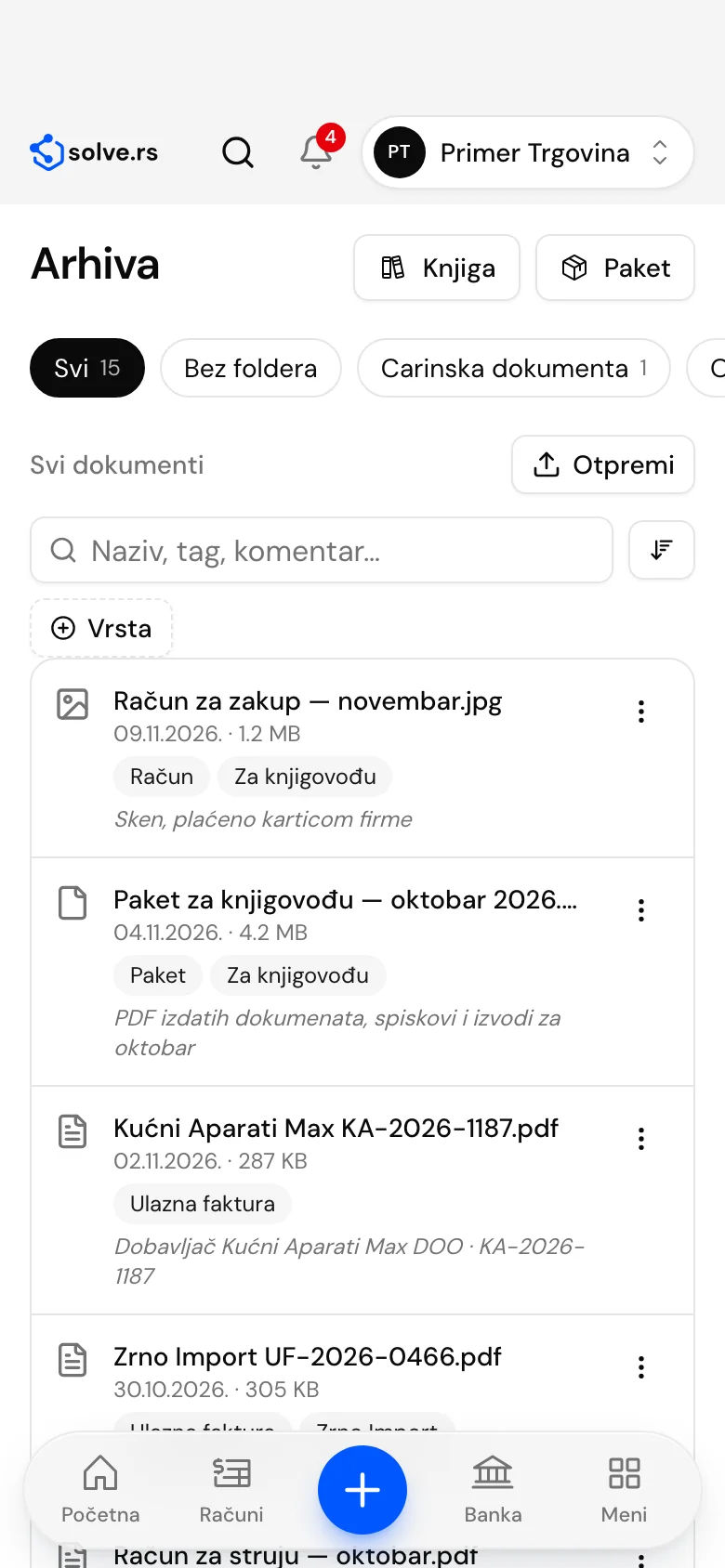
Company document archive in one place
Contracts, employment contracts, customs documents and scanned receipts are kept in folders, with tags, comments and search. Incoming invoices you load from a PDF or an image with AI reading land in the Archive by themselves, and the Archive Book with a PDF copy comes with it.
- Sole traders and entrepreneurs
- Companies (DOO)
- Associations
- Accountants
The demo account lasts 10 days and we set it up together with you. Plan prices exclude VAT and are on the Pricing page.
At a glance
- largest file, of any type
- 25 MB
- each company has its own folders and documents
- Per company
- the Archive Book with a PDF copy
- AK form
- a monthly document package for your accountant
- ZIP
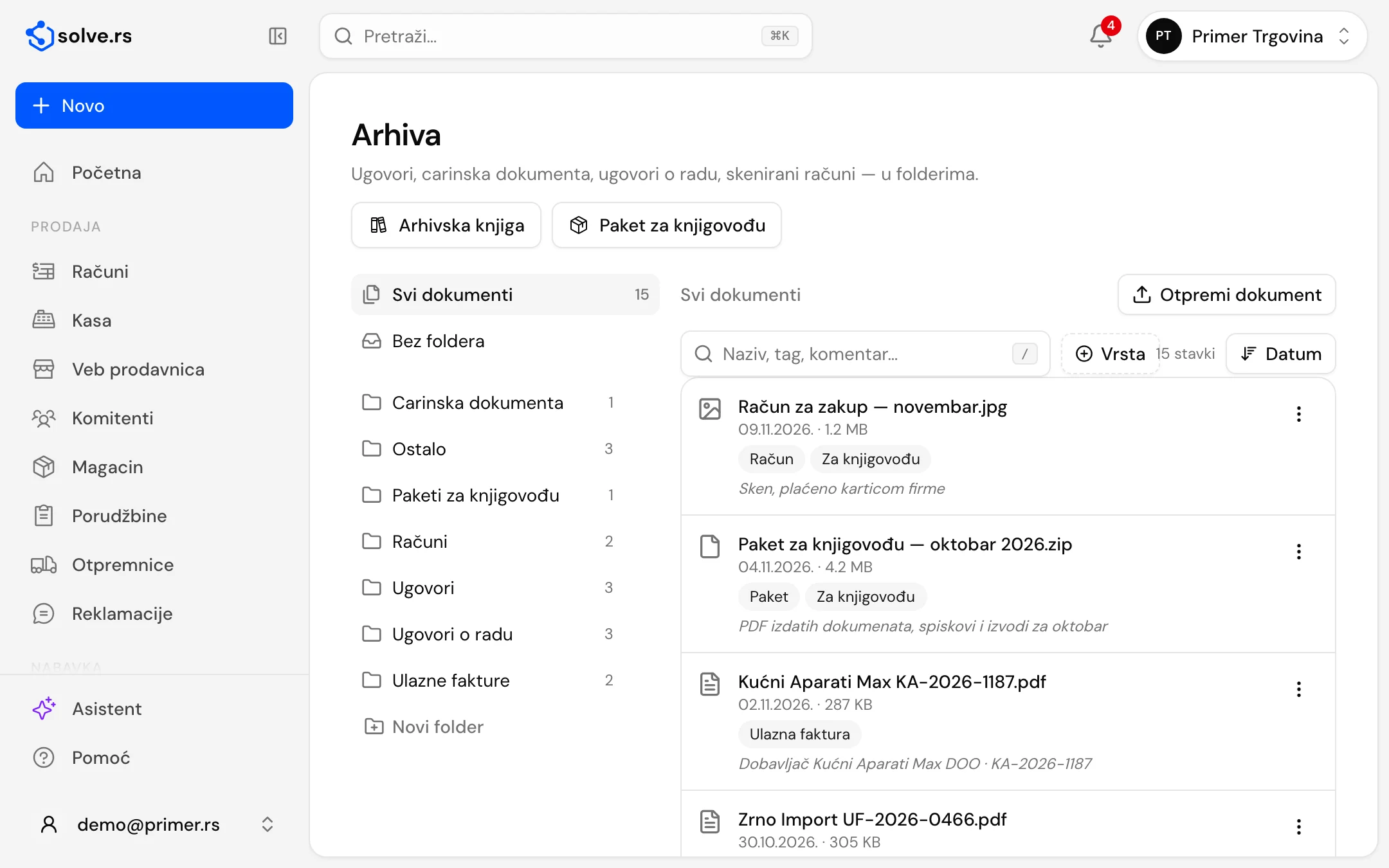
Company documents in folders
Everything the company needs to keep, per company and searchable.
Folders
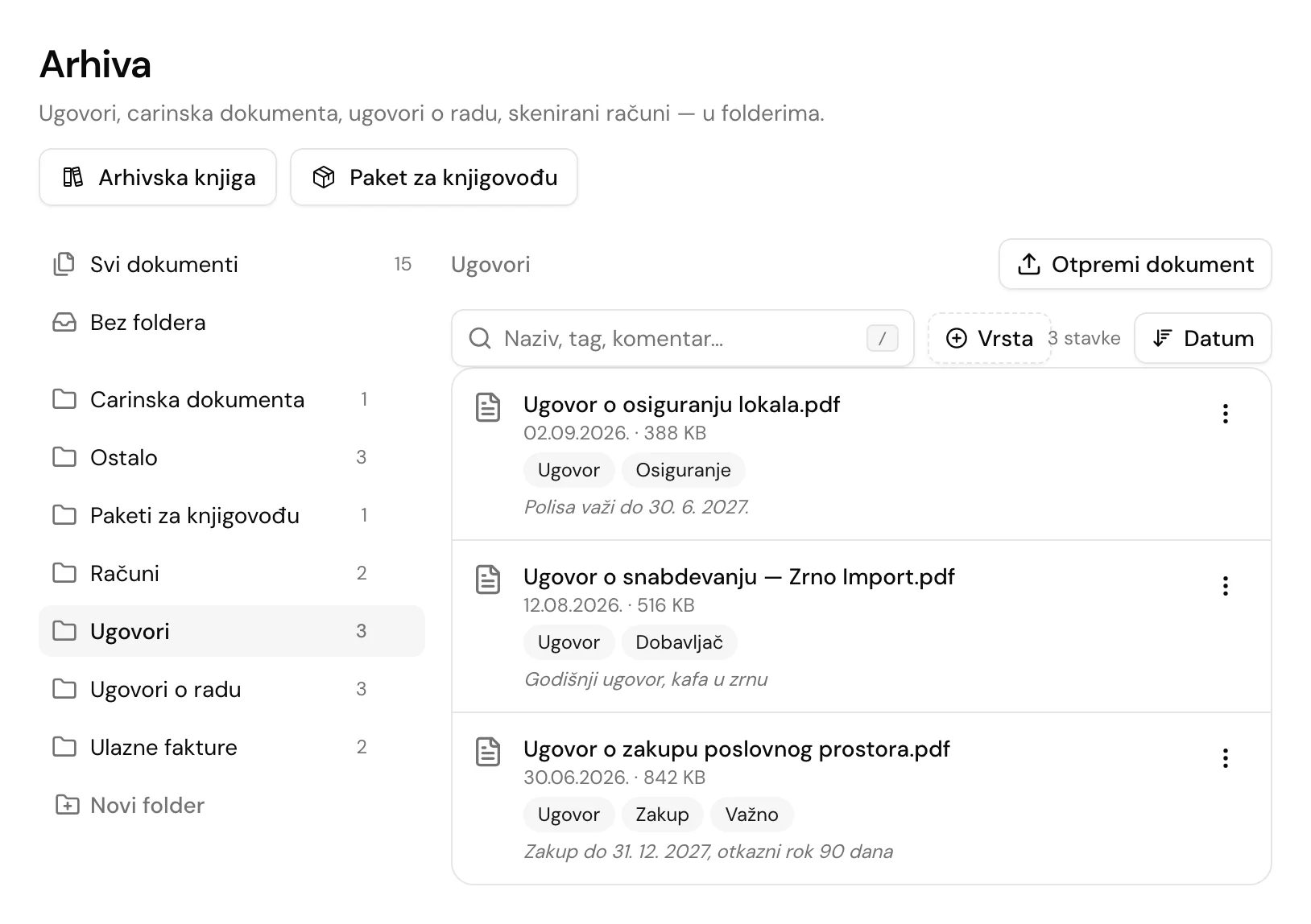
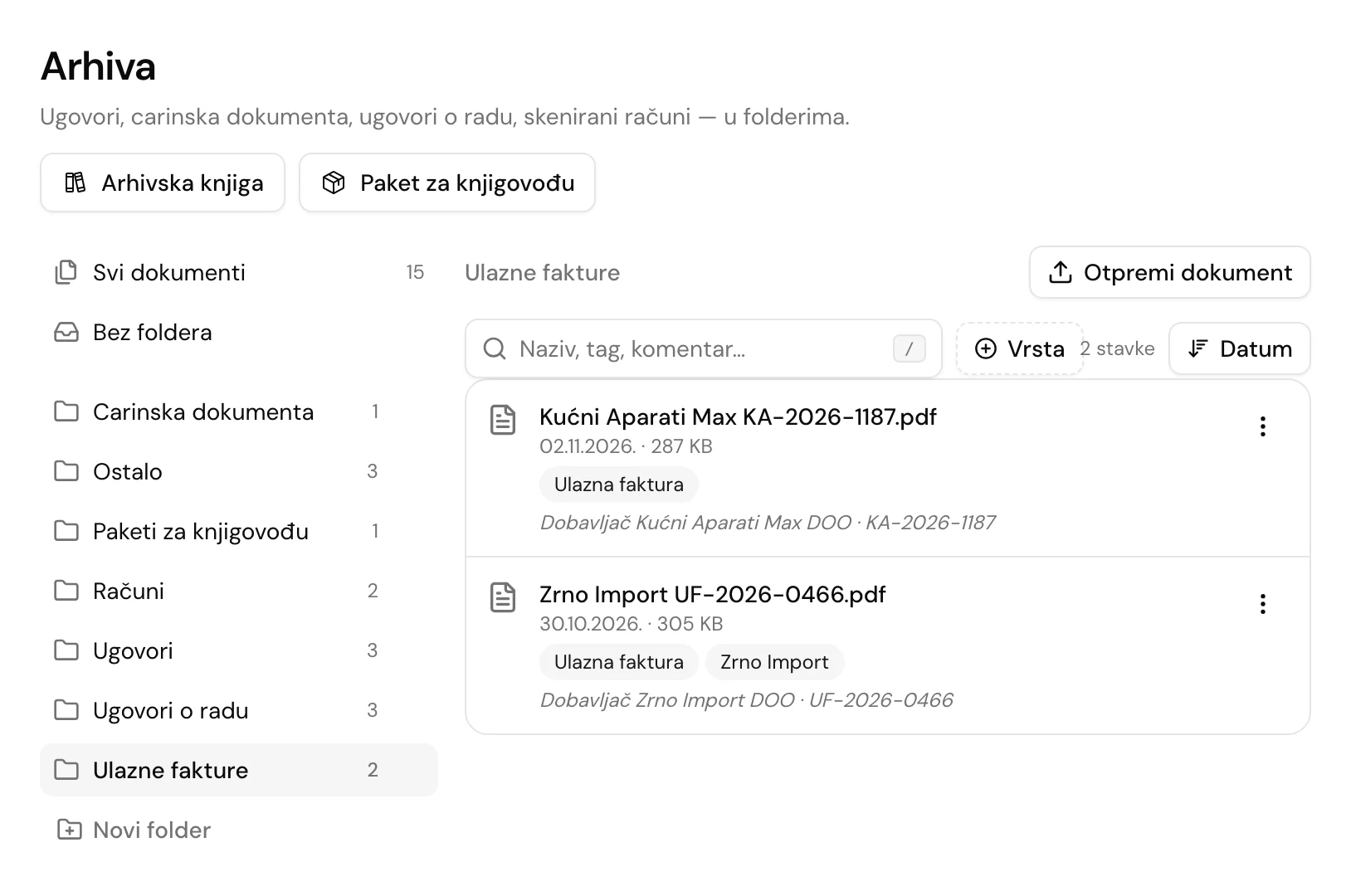
Create your own folders or the default ones: Contracts, Employment contracts, Customs documents, Receipts and Other. A folder can be renamed or deleted, and the documents from a deleted folder stay in the Archive.
Upload and open
Upload a PDF, an image or any other file up to 25 MB into the folder you choose. You open or download a document from the Archive and move it to another folder in one click.
Tags and comments
Add up to 12 tags to each document (Contract, Customs, Important, For the accountant, and your own) and a comment about what it is.
Search
Find documents by name, tag and comment, filter by type (PDF, image, other) and sort by date, name or size.
Documents that arrive by themselves
Some documents you do not need to upload: the app leaves them in the Archive.
Incoming invoices with AI reading
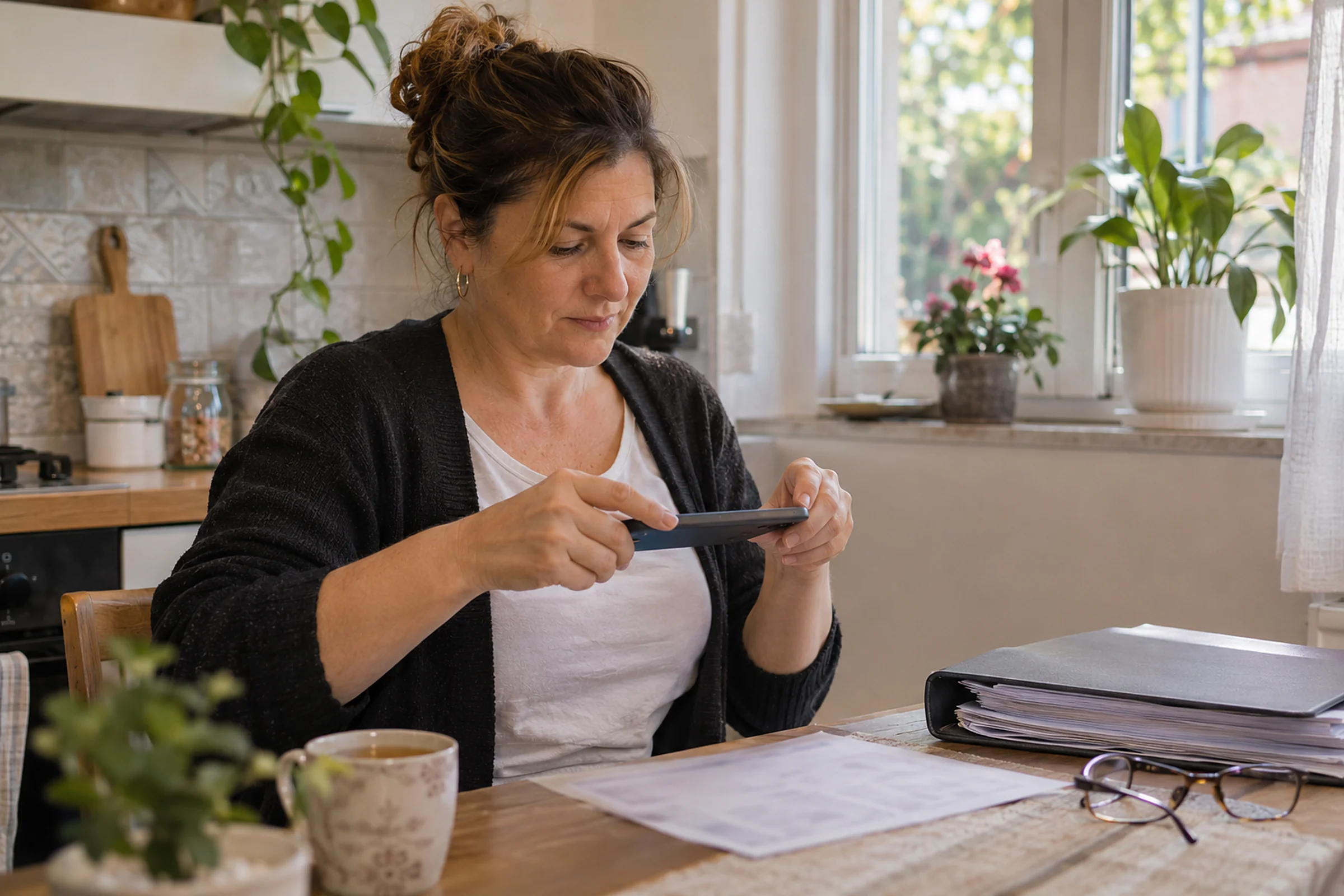
You load an incoming invoice from a PDF or an image, AI reads the data into the form, and you check it before saving. The original goes into the “Incoming invoices” folder, with a tag, a comment (supplier and number) and a link back to the invoice.
Accountant package
Create a ZIP for the month in one click: PDFs of issued documents, CSV lists of issued and received invoices, expenses and retail sales, receipt images and statement files. A copy stays in the “Accountant packages” folder.
Documents on your accountant’s request
When your accountant asks for documents, the files you upload with the request stay in the “For the accountant” folder, with a tag and a link to the request.
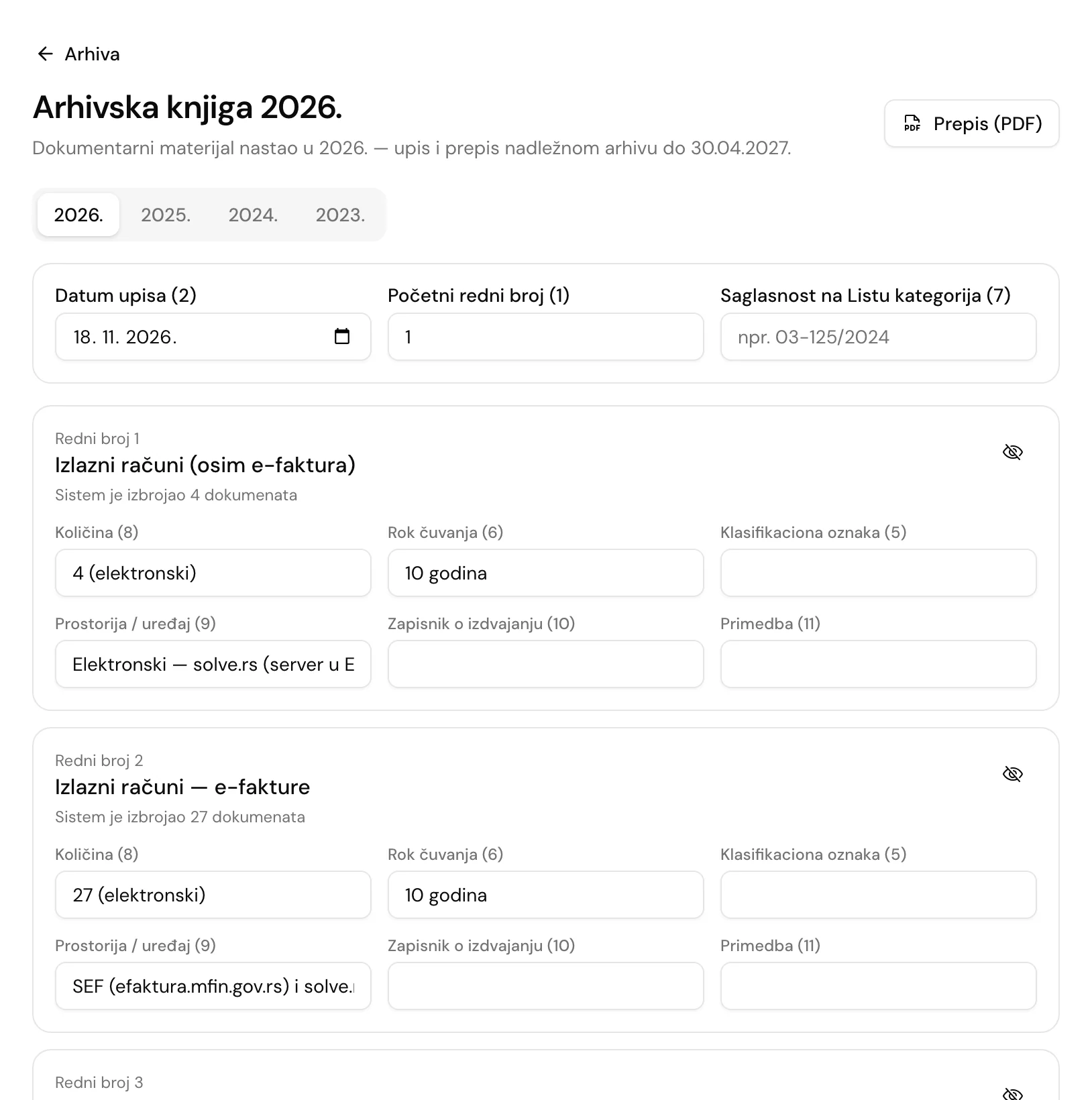
The Archive Book, year by year
A register of documentary material under the Law on Archival Material and Archival Activity (the AK form).
Rows fill themselves
The app counts issued invoices and e-invoices, fiscal receipts, pro formas and quotes, incoming invoices, expenses and statements for the year, and adds the Archive folders. The KPO book and PK-1 are added as a row when your company keeps them.
Retention period, quantity, location
Retention periods are a suggestion (10 years, and 5 for pro formas and quotes), and you edit the period, quantity, storage location and remark per row. Paper documentation is added by hand as a separate row.
Locking and the PDF copy
The deadline for the previous year’s material is 30 April. Serial numbers continue from year to year. When the book is done, you lock it and download the copy as a PDF.
Archive, step by step
Create folders
Your own, or the default ones: Contracts, Employment contracts, Customs documents, Receipts, Other.
Upload documents
PDFs, images or any file up to 25 MB. Incoming invoices from a PDF and accountant packages arrive by themselves.
Tag and find
Add tags and a comment, then search by name, tag or comment.
Lock the Archive Book once a year
The rows are already counted. Check them, lock the book and download the PDF copy.
Good to know before you start
- The Archive is per company: you see the documents of the company you have selected. An accountant you invite to your organization can view and download them.
- Document storage depends on your package, and extra storage can be added as needed.
- Match the retention periods in the Archive Book to your company’s List of categories. The app offers a suggestion.
Works on desktop, tablet and phone – also as an app
On Android phones and tablets, get the app from Google Play (available in Serbia for now). An iPhone app is on the way; until then, open invoice.solve.rs in Safari and add it to your home screen. For Mac and Windows there is also a desktop app, with which invoices, pro formas and quotes work without internet (fiscal receipts still need internet). The interface is in Serbian; invoice PDFs can also be in English.
Get it on Google Play- Desktop
- Tablet
- Phone
- Each company’s data kept separate
- Interface in Serbian
- Cyrillic or Latin script
Archive: frequently asked questions
What can I keep in the Archive?
Contracts, employment contracts, customs documents, scanned receipts and other files, up to 25 MB per file. The file type is not restricted, and documents sit in folders, per company.
How do I find a document?
By searching by name, tag and comment. You can filter the list by type (PDF, image, other) and sort by date, name or size.
How does AI reading work with the Archive?
In Incoming invoices you load a PDF or an image, AI fills in the fields, and you check them and save. The original is kept in the Archive by itself, in the “Incoming invoices” folder, with an “Open the incoming invoice” link.
What is the Archive Book?
A register of documentary material under the Law on Archival Material and Archival Activity (the AK form). The app counts documents by category for the year you choose, and you add retention periods and paper documentation. Whether your company keeps it, and in what form, is something to check with your accountant.
Can my accountant see the Archive?
Yes. Invite them into your organization with the bookkeeper role, and they can view documents and download files. The accountant package is created by the owner or a manager.
How many documents can I keep?
Storage depends on your package, and extra storage can be added as needed. The largest single file is 25 MB.
Your company documents in one place
A demo account lasts 10 days, and we set it up together with you. Try the folders, the search and the Archive Book.
The demo account lasts 10 days. Most modules need us to set them up, so we open and set up the account together with you.
Related modules and solutions
- InvoicingIssued and received invoices, e-invoices, partnersLearn more
- BankStatements, payment matching, cash bookLearn more
- For accountantsAll client companies under one login, a monthly package for the accountant, IOS statements and ledgers.Learn more
- For businessesInvoicing, SEF, bank, expenses, inventory and payroll for LLCs and sole proprietors who keep full books.Learn more